Wednesday, November 26, 2014

14 Reasons Why Your iPhone Battery Quickly Goes Low

lowbattery 
The iPhone is considered a great feat in not only advancing some of the cellular features that have already been a part of cellular phones, but to also be the forefront of the creation of some of these features. However, one thing that comes with these added features and advancements is a weak battery life. The batteries can only take so much and when you couple in the applications that individuals love to hoard, the battery most likely won’t even last half the day. This doesn’t have to happen. Today, we will take a look at fourteen reasons why your iPhone’s battery life is horrible and steps you can take to fix this.

You’re Not Limiting Location Services


1
You’d be surprised by the number of applications that are making use of location services and you don’t even need to make use of it. By going to Settings > Privacy > Location Services, you will be able to select which applications you would like to have make use of location services. By doing this, you will be able to prevent your iPhone from having to continuously check to see the location you are in and pinging this information to the requesting applications.

Your Mail is Always Fetching

2
Similar to the issue with locations, mail that is set to fetch means that your iPhone continuously check your mailbox server, waiting for a new message. Once one arrives, your iPhone is notified and you are able to choose whether or not to check the email or not. By going to Settings > Mail, Contacts, and Calendars > Fetch New Data > Manually, you are able to have your iPhone check your mailbox only when you manually go to your iPhone Mail app and refresh.

Your Apps Are Always Running

3

iOS 4, your iPhone has been able to run multiple apps at the same time. Also commonly known as multi-tasker, we can colloquially call it “battery-killer”. Multitasker may be useful when you need to switch between multiple applications around the same time. However, it becomes a nuisance when you find yourself failing to quit an application for a long period of time, unnecessarily. You can alleviate this problem by double-tapping the home button, and swiping the screen card up to quit. You can even use multiple fingers at the same time to quit multiple apps at once.

Your Screen is Too Bright

4

It is obvious that having a bright screen can kill your battery. However, many individuals fail to understand or acknowledge this. As a result, they will find themselves with their battery lives dying faster. Instead, swipe up the Control Center of your iPhone and bring the brightness a bit lower. In addition, to prevent your iPhone from automatically changing the brightness again, go to Settings > Wallpapers & Brightness > and toggle off Auto Brightness.

You Think Airplane Mode is Only for Traveling


Airplane Mode was enacted on phones to prevent them from automatically connecting to a network that allegedly according to some in the FAA affect the radar of airplanes. However, Airplane Mode doesn’t have to be used just for that. You can find yourself making use of Airplane Mode in any situation where you won’t be making use of a cellular network. Whenever I’m on the metro or my battery is below a certain level, I enable Airplane Mode to extend my iPhone’s battery life. You can as well by swiping up control centre and tapping on the airplane on the top left.

You Have Automatic Downloads On


On the iPhone, you are able to have it so that your applications from the app store automatically update whenever there is a new update. However, with your iPhone constantly checking to see if there is a new update, along with the other applications which are already updating, you can find yourself with a battery life that is constantly being used up. To prevent automatic downloads from the App Store or even the iTunes store, among others, go to Settings > iTunes and App Store, and toggle which applications you’d like to have automatic downloads for and those you don’t.

You Have Apps Refreshing


Background App Refresh is one of the biggest battery killers. Background App Refresh is when you have applications that constantly update its information so that when you open the application, even when it’s not in the multi tasker, you are able to have the application completely updated with new information that will be pinged once you open the application. To turn this feature off, simply Setting > General and toggle it off.

You’re Push Notifying Your iPhone


Aside from fetching, push notifications is another culprit for poor battery life with iPhones. With push notification, you are able to be notified if a new alert hits your phone, which will allow you to answer or ignore it. If you have some applications where this is completely unnecessary, go to Settings > Notification Center > and edit which applications you’d like to have notify you through push notification.

You Have AirDrop Continuously On


AirDrop is a feature that allows individuals to send photos, videos, and other multimedia to other iPhones in the same vicinity. Depending on the speed of one’s personal network connect, this may be faster than sending by email or MMS because AirDrop doesn’t make use of the cellular network. You can toggle AirDrop off by going to the Control Center and pressing AirDrop and select “off”.

You’re Using Parallax


Parallax is an effect on the iPhone that creates an illusion of floating applications. This is a move introduced in the a couple of iOS generations ago. It may look nice, but its unnecessary and in the end, all it does is just drain your battery life. To turn Parallax off, simply go to Settings > General > Accessibility > turn on “Reduce Motion”. This may make iOS 7 less dizzying for you as well!

You’re Not Limiting Spotlight Search


Spotlight Search is a feature that most iPhone users don’t even make use of. It is when you slide your finger down from the middle of the screen and you are able to search for applications, contacts, messages, and more. Most individuals simply ignore this feature, but because it is constantly updating with new information, it is always making use of your battery life. To turn certain things off of Spotlight Search, simply go to Settings > General > Spotlight Search and toggle which applications you don’t care to have included in Spotlight Search.

You Continuously Run Bluetooth


Bluetooth is an aspect of the iPhone that isn’t as useful as it would have been in the past. With the advancement and creation of features and applications that now do the jobs that bluetooth once did, it can be a feature that you can find yourself turning off without a care. To do so, simply bring up the control centre and click on the Bluetooth symbol which is located to the right of the WIFI symbol.

You Have Too Many Apps


Chances are, you may not find the problem being that you have too many applications in multi task, you might simply have too many applications on your iPhone in general. This is the time to make an iPhone clean-out and look at the applications that you find you aren’t making use of anymore and delete them from your life.

In addition, you could use the method of simply deleting all apps from your iPhone and starting anew. You will download an app when you find you need to make use of it and give it a deadline. Each day the app isn’t in use adds to the deadline timer. Once an app reaches its deadline, for example a month of non-use, delete it!

You Aren’t Extending Your Battery


Chances can also be that you just aren’t extending your battery as much as you should. When your battery is at 20%, do you continue to use your phone as normal or do you make adequate precautions, such as the ones mentioned above? If not, then this may be the time to include them in. You may also have an iPhone that dies quickly because you aren’t making use of the products out there, like Mophie brand products, which allow you to have an iPhone case that extends your battery for a couple of hours. Look into investing in these products!

Let us know in the comments below which reason you feel hits home the most for you. Let us know if you have any other tips for extending your battery life to its fullest that weren’t mentioned in the article.

Tuesday, November 25, 2014

Enable Copy paste in CMD

By Default Windows do not allow users to Copy text and Paste it in Command prompt Or Copy text from Command prompt and paste it elsewhere. But there is an option in CMD itself to enable Copy & Paste Text in Windows Command Prompt.
Today in this tutorial we will learn how to Enable Copying and Pasting Texts in Windows Command prompt. One of the main advantage of this will be that you can copy any command that you find on the internet or from any word/excel file and paste it directly in CMD and execute that command just like that.

How to Enable Copy Paste in CMD

Step 1: Open CMD, Just type CMD in search or Press Win + X key to select Command Prompt.
Step 2: Right Click on the Title of the CMD window and Select Properties just like its shown in the below Picture
Enable Copy paste in CMD
Step 3: You will see a Pop up Window coming up, Now on the Right hand side, Under Edit Options, Just Check Quick Edit Mode and click OK
Step 4: Everything is Done, Now just Copy any Text from Here or Anywhere else Using CTRL + C keys and just Right click using your mouse on CMD. You will see that the text is been pasted automatically in CMD. Please Understand that Using CTRL + C to Copy text is Important.
Likewise if you wish to Copy Text from CMD to paste elsewhere then Just Select the Text in CMD and Again just Right Click with the mouse. Your Text is Copied and ready to Paste it in any Document you want.
This Doesn’t Limit you to just Text you can even copy File or Folder path and paste it in CMD. Everything that you have to type manually can be copied from somewhere and pasted directly to CMD with this small Tweak.

So this was just a small Tip I wanted to Share with my Readers so that you don’t have to Type any long Command in CMD which if typed incorrectly can cause errors. I hope this will help some Of you.

iPhone User Needs To Know These Smart Ways To Use Siri


Siri is an artificial intelligence program built into the iPhone and newer iOS devices. Siri is a powerful time management and productivity tool. Understanding this tool will dramatically improve your daily efficiency and memory.

Getting started with Siri

1. In order to access Siri, your iPhone has to be on but it does not have to be unlocked. Simply hold the “Home Circle” at the bottom of your iPhone for two seconds and you will hear two little delightful beeps. You will see a microphone image appear on the screen and just to the left of the microphone is a tiny question mark inside a circle.

2. Tap the question mark to immediately view examples of the wide variety of tips and time-saving shortcuts included in the current functionality of Siri.

Siri Imge 0.5
I was unfamiliar with the full functionality of this iPhone feature. Once you hold down the home circle key and you tap on the question mark at the bottom left of the image shown above, your iPhone will walk you through the images shown throughout this article.

Siri has thousands of practical uses.

The following screen shots are from my personal iPhone 5s. Let me give you a guided tour of how I have used Siri in just the last seven days.

Siri Imge 1

Send Messages

The capability to speak a text message via Siri has boosted my efficiency exponentially. No more typing and retyping. Instead I can say:
  • Text John Arnold (if you pause, Siri will politely ask, what would you like to text John Arnold? If you don’t pause, your message just continues): “Will you resend me the link to your last webinar”
  • Text Mom: “Mom I will call you back in 30 minutes”
  • Reply to Teresa Beck: “We will meet you at the restaurant at 12:15″
  • Send a message to Susan: “So proud of Bowen’s three point shot”
  • Text Mary Ann: “Thanks for picking me up at 4:30. Is that 4:30 Central Standard Time or 4:30 MAG time?” (My friend MAG runs 15 minutes late–she functions in her own time zone. MAG’s very last text message to me was “MAG time plus I am running 15 minutes later than that!)
Siri Imge 2.0

Adding and Changing Calendar Events

This Siri feature is #2 on my iPhone most loved capabilities. The abilities are remarkable. This is just a partial list of how I use the calendaring functionality Siri offers:
  • “Siri, what is on my calendar today?”
  • “Move my 9:30 am meeting to 10 am”
  • “Schedule a call with Michele at 9:30 am today”
  • “Meet with Ellen at noon to discuss new book concept”
  • “Set up a meeting with Bridget in the conference room at 2 pm
  • “Cancel my 2:30 pm appointment”
  • “What is on my calendar for this Friday afternoon?”
I love being able to tell my phone the time and date of a meeting, event or appointment, and have it instantly put on my calendar. And, if I have an overlapping conflict, Siri will let me know that as well.

Maps and Navigation

I am one of those women who understands left and right, but not north, south, east and west. Every few days I push the round home button on my iPhone and say:
  • “How far is it from Jonesboro, Arkansas to Memphis, Tennessee?”
  • “Give me directions to my house”
  • “How far am I from the next turn?
  • “What is my ETA?
  • “What is Abby’s address?”
  • “What are the walking directions to Gina’s Restaurant?”
Siri Imge 3.0

Reminders

Using Siri to set reminders is the feature I use the most. Your short-term memory is like a dry erase white board. Ideas, thoughts and tasks will briefly creep into your conscious awareness, but if you don’t have access to an immediate place to capture that idea, it will be gone forever. The best part of the reminder functionality is that you can request the exact date and time you would like Sire to remind you to complete a task.
  • “Remind me to pick up the milk at 5:30 pm today”
  • “Remind me to write the budget proposal at 10:00 am tomorrow”
  • “Remind me to take my car into the shop next Thursday at 7:30 am”
  • “Remind me to write James a thank you note”
Siri Imge 4.0

Email, Alarms and Other Clock Uses

Siri is efficient for emailing your friends and asking about specific emails you have received, but I would be careful about sending verbal emails to people you don’t know well. Siri sometimes misinterprets your words. However, I love the alarms and other clock uses. At the touch of a button I can tell Siri:
  • “Wake me up at 7:45 tomorrow morning”
  • “Set alarm to leave for lunch at 11:35 am”
  • “What is the date for next Tuesday?”
  • “Set the timer for 15 minutes” (this is great for baking cookies)
Siri Imge 5.0

Web, Notes and Questions

With the search the web feature and questions you can find out almost anything. Periodically Siri might say, “Hhhmmm, let me check the web for that” or “I am unable to retrieve information at this time”. You might ask:
  • “What is the address of the nearest gas station?”
  • “Who won the baseball world series in 1964?”
  • “What movies are playing at the Malco Theater in Jonesboro, Arkansas?”
  • “Why should I buy a hybrid car?
Notes allow you to store information that is less time sensitive, but you still want a place to capture that information for retrieval at a later time. You might say:
  • “Note that Abby wears a size 7 shoe”
  • “Note that Ann’s favorite color is turquoise”
  • “Note that Heather is allergic to shellfish”
You can even add individual note to a specific note:
  • “Note that we use the 12 oz package of noodles to my grocery note”
Siri is a powerful time management and productivity tool. Everyone relies on time management and reminder tools to function more efficiently in life.

With Siri you can begin to rely less on:
  • notepads
  • the back of envelopes
  • sticky notes
  • the palm of your hand
  • paper calendars
  • formal written to-do lists
  • calling your own voice mail
  • emailing yourself
  • even putting rubber bands around your wrists

Fun Siri facts

  1. Siri is a limited intelligence personal assistant
  2. Siri uses a natural user language interface to answer questions, make recommendations, and perform actions by delegating requests to a set of web services
  3. The name “Siri” is Norwegian, and means “beautiful woman who leads you to victory.” It comes from the intended name for the original developer’s first child.

Monday, November 24, 2014

Five Quotes From Bill Gates That Will Teach You Valuable Lessons


Bill Gates has accomplished a lot of wealth and success than anyone of our generation. however even a lot of significantly he has worked indefatigably to boost lives and stop deaths through his generous charitable contribuitons. I even have omitted a handful of his a lot of well-known quotes and instead tried to target those lesser known  quotes. I hope you\'ll notice that these resonate with a number of your own valuable life lessons you recognize to be true. Here may be a healthy dose of what has created adult male. Gates thriving and things we must always pay shut attention to if we tend to would like to succeed at our own dreams and needs.

1. Focus1024px-Bill_Gates_at_Sorbonne_3

“The most important work I got a chance to be involved in, no matter what I do, is the personal computer. You know, that’s what I grew up in my teens, my 20s, my 30s, you know, I even knew not to get married until later because I was so obsessed with it. That’s my life’s work.”
We start life with many big dreams–things we want to accomplish, create, build and experience. But if you ask anyone past the age of 40 what happened to all the dreams they had, they will most likely answer: Life. This is true; life has a tendency to just happen. But it happens because we make choices. The life you create and design for yourself is going to accumulate from the choices you make over time. Sure, there are unexpected things that can derail dreams. But we can control where we put our focus, and if we choose to put one dream ahead of another. Those are all choices we get to make individually. Bill Gates knew that to meet his dreams and see his most important work achieved he would need to take a different route than most people. To do that, he put some other dreams on the back burner. Ask yourself: are the choices I am making today truly supporting the dreams I have for tomorrow?

2. Feed your mind1024px-Bill_Gates_-_World_Economic_Forum_Annual_Meeting_New_York_2002

“I really had a lot of dreams when I was a kid, and I think a great deal of that grew out of the fact that I had a chance to read a lot.”
I especially love this quote because I believe books are filled with pure mystical magic. How do you know the life you want to design and the dreams you want to achieve, unless you are exposed to the vast colorful rainbow of opportunity that this wide world holds? You can read science fiction, poetry, crime, drama, self-help books, love stories, or whatever your heart desires–just read. The imagination that created an entirely new set of possibilities for your mind to explore is magic made for growth. You just don’t know what you will read that will spark a new love or desire in you. Influence comes from some of the most unforeseen obscure encounters and experiences. We can’t all have a life that affords us to travel the world, but we all have at our fingertips the world through words. Reading is the compass to your future.

3. Discipline

1024px-BillGates2012
“We always overestimate the change that will occur in the next two years and underestimate the change that will occur in the next 10. Don’t let yourself be lulled into inaction.”
In today’s world we are lulled into a desire for instant gratification, a “show me the results now” kind of mindset. If we don’t see results from our efforts within a very short timeframe, we are apt to bail. Our entertainment, technology, news, social interactions, relationships and education move at warp speed. We have lost all gumption to stick with the process, dig our heels in and just work without lifting our heads. This quote is point on. We are impatient in our expectations and give up far too easily. Mr. Gates is telling us to stick out the hard times in the beginning and, before you know it, your efforts will compound multiple times over with results. But, we can’t give up too soon just because we crave instant gratification in today’s fast click world.

4. Be yourself1024px-Bill_Gates,_WEF_2009_Davos

“Don’t compare yourself with anyone in this world…if you do so, you are insulting yourself.”
We waste so much time in envy and desire of what others have. Instead of letting their unique light be appreciated and honored, we pity ourselves and putter about feeling sorry that we don’t have legs to the sky, luxurious thick hair, or huge almond shaped eyes. We see others with prosperous jobs, witty humor, loads of friends, and the list goes on and on. And while we create this meaningless list of what we are not, we are slowing suffering a slow death of what we are. We were each especially designed to fulfill a particular balance at this point in time and place in the universe. We are destined to be here and be exactly what we bring to the world. Quit listening to the voice of fear and envy. Rejoice in other people’s gifts, and in your own without reserve.

5. Give back

1024px-Bill_Gates_-_World_Economic_Forum_Annual_Meeting_Davos_2008_number2

“There is a certain responsibility that accrued to me when I got to this unexpected position.”
Once you have any inkling that your feet feel solid on the ground for even a brief period of time, you have the responsibility to look around you, reach out for someone struggling and throw them out your hand. Someone helped you along your journey. They gave you a pep talk, instilled confidence, gave you wings to soar or an opportunity to fail. Nothing you have achieved of value has been a solo performance. Any time you are able to help anyone else it is your duty to help. And the best part is that every single thing you give out in this world comes back to you ten-fold. Every smile, every kind hand held, every hug, every heartfelt thought for goodness comes back directly to you, multiplied in strength. What we give to others we give to ourselves. What we withhold from others we withhold from ourselves.

I hope you like and enjoyed exploring these powerful quotes from Bill Gates, and have some new excitement in designing and generating your own powerful destiny. We all have a footprint to leave here. You get to decide and imprint your own beautiful design on this world.

Create Shortcut That Lets Standard User Run An Application as Administrator

image

Want to Allow standard user account to run an application as administrator without a UAC or password prompt? You can easily create a shortcut that uses the runas command with the /savecred switch, which saves the password,It is easy to create and don't take much time.

Note that using /savecred could be considered a security hole – a standard user will be able to use the runas /savecred command to run any command as administrator without entering a password. However, it’s still useful for situations where this doesn’t matter much – perhaps you want to allow a child’s standard user account to run a game as Administrator without asking you.

Enabling the Administrator Account

First you’ll need to enable the built-in Administrator account, which is disabled by default.

To do so, search for Command Prompt in the Start menu, right-click the Command Prompt shortcut, and select Run as administrator.

image

Run the following command in the elevated Command Prompt window that appears;
 

net user administrator /active:yes

image

The Administrator user account is now enabled, although it has no password.

To set a password, open the Control Panel, select User Accounts and Family Safety, and select User Accounts. Click the Manage another account link in the User Accounts window.

image

Select the Administrator account, click Create a password, and create a password for the Administrator account.

image

Creating the Shortcut

Now we’ll create a new shortcut that launches the application with Administrator privileges.

Right-click the desktop (or elsewhere), point to New, and select Shortcut.

image

Enter a command based on the following one into the box that appears;

runas /user:ComputerName\Administrator /savecred “C:\Path\To\Program.exe“

Replace ComputerName with the name of your computer and C:\Path\To\Program.exe with the full path of the program you want to run. For example, if your computer’s name was Laptop and you wanted to run CCleaner, you’d enter the following path;

runas /user:Laptop\Administrator /savecred“C:\Program Files\CCleaner\CCleaner.exe”

image

Enter a name for the shortcut;

image

To select an icon for your new shortcut, right-click it and select Properties.

image

Click the Change Icon button in the Properties window.

image

Select an icon for your shortcut. For example, you can browser to CCleaner.exe and choose an icon associated with it. If you’re using an other program, browse to its .exe file and select your preferred icon.


image
The first time you double-click your shortcut, you’ll be prompted to enter the Administrator account’s password, which you created earlier.
image
This password will be saved – the next time you double-click the shortcut, the application will launch as Administrator without asking you for a password.


As we mentioned above, the standard user account now has the ability to run any application as Administrator without entering a password (using the runas /savecred command to launch any .exe file), so bear that in mind.

Sunday, November 23, 2014

Amazing App That Can Calculate Math For You


Math can get in the way of your dreams.I Already Seen Some Of my friends that are not good specially in math so this app will help them as a Calculator Can Do.
Incorrect computations can cause you to fail your classes and even get fired from work. What if you could magically take a photo of a math problem and get the answer instantly?


Introducing Photomath, an impressive app that does exactly that.

werwer 
Point your phone at a math problem and Photomath will give you the answer. It also shows you the proper steps to take to arrive at complex solutions. Below are the supported features of the app;

wrerww 
The Photomath app is a breakthrough for everyone. Students can cut their homework time in half. Furthermore, individuals don’t need to hire an expensive math tutor.

were 
Professionals such as consultants, engineers, and analysts may also find this app extremely beneficial. With Photomath, individuals can compute for data without relying on Excel equations.

Photo Math | Home

Saturday, November 22, 2014

How to Decompile and Recompile .jar File | With Pictures


This is a very comprehensive tutorial of decompiling the .jar file and recompiling it again. You gotta need few files for that purpose. So moving on to our guide.

Requirements:

1. WinRar
2. Apktool by AGD Tech solutions
3. And Obviously a .jar file that you wanna execute.


How to Decompile and Recompile .jar File


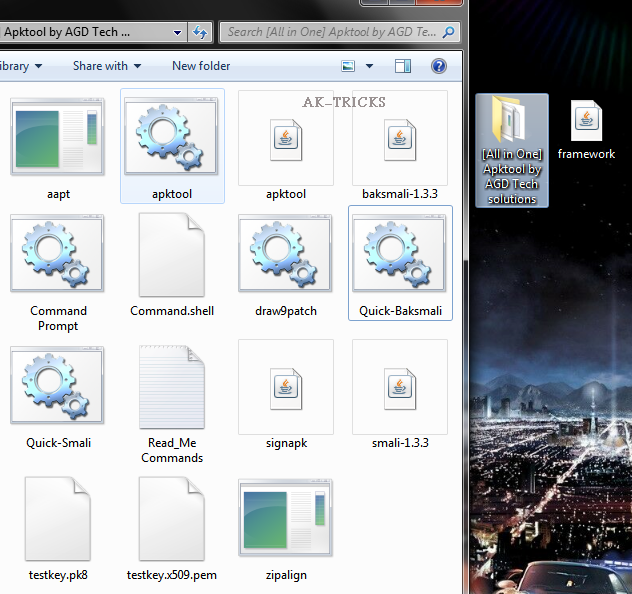
1. Extract the downloaded Apktool and Keep it to desktop with Framework.jar file


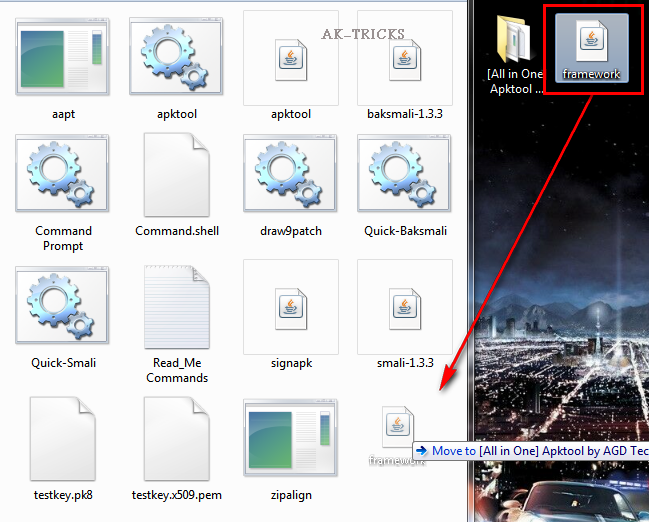
2. Now drag the framework.jar file into APKtool folder.


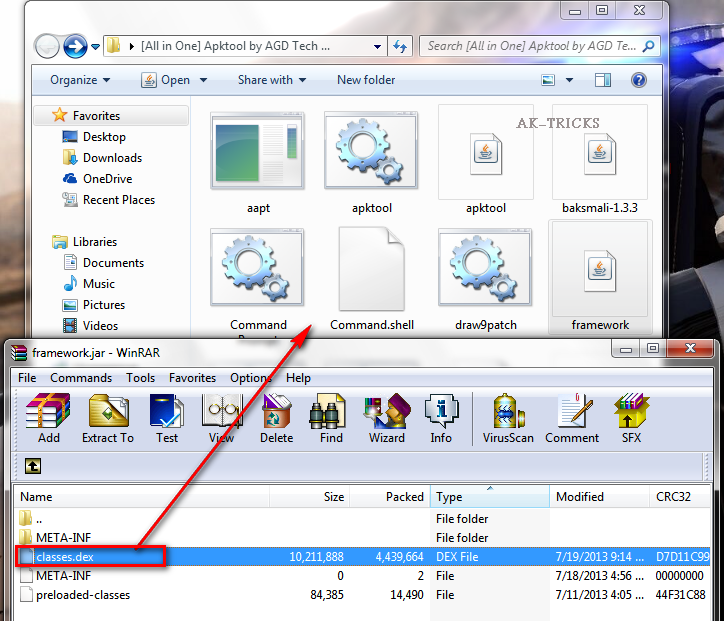
3. After Dragging it, open framework.jar with WinRar. And drag classes.dex file into APKTool Folder.


4. Now Open Quick-Baksmali (shown in red box) from APKtool folder. A cmd window will run for a few seconds and will automatically close, that would create a new folder named Classout. (shown in black box)


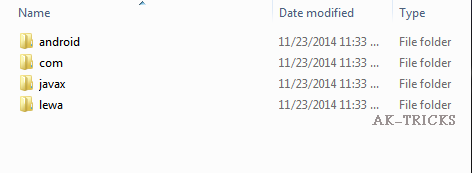
5. Open classout folder and make changes whatever you want.

6. Recompiling the .jar file. Drag classout folder over Quick-smali cmd file.


7. A cmd window will open and will create a new classes.dex file.


8. The new classes.dex file would be named new-classes.dex.(shown in black box). First delete the old classes.dex (shown in red) and rename the new-classes.dex (shown in black) to classes.dex


9. Now again open the framework.jar file with WinRar and Drag the new classes.dex into the archive window and replace with the old file.


Now your framework.jar file is ready to use. Cheers!